@harrykame
2025-12-04T05:39:44.000000Z
字数 8091
阅读 3
Welcome to the Cmd Markdown editor and reader.
We understand your need for more convenient and efficient tools to record your thoughts, organize your notes and knowledge, and share the value they contain with others. Cmd Markdown is our answer—we provide a more professional tool for recording thoughts and sharing knowledge. You can use Cmd Markdown:
- Organizing knowledge and study notes
- Publish diaries, essays, and reflections.
- Write and publish technical documents (code support).
- Create and publish various charts (supports nineteen chart types).
- Writing and publishing academic papers (with LaTeX formula support)
- Using AI to assist writing (with the option to switch to a larger model)
In addition to the online version of Cmd Markdown that you are seeing now, you can also download it from the following website:
Windows/Mac/Linux cross-platform client
Please keep this Cmd Markdown welcome message and usage instructions. To write a new document, click the button on the right side of the top toolbar. New document or use keyboard shortcuts
Ctrl+Alt+N.
What is Markdown?
Markdown is a simple, easy-to-remember, and easy-to-write plain text markup language. Users can use these markup symbols to generate highly expressive documents with minimal input: like the document you are reading now. It uses simple symbols to mark different headings, separate different paragraphs, bold or italicize certain text, and even better, it can...
1. Create a to-do list.
- Supports exporting documents in PDF format.
- Improve Cmd rendering algorithm and use local rendering technology to improve rendering efficiency.
- Added Todo list feature
- Fixed LaTeX formula rendering issues
- Added LaTeX formula numbering function
2. Write a mass-energy conservation formula [1]
3. Highlight a section of code [2]
@requires_authorizationclass SomeClass:passif __name__ == '__main__':# A commentprint 'hello world'
4. Efficiently draw flowcharts
5. Efficiently draw sequence diagrams
6. Efficiently create Gantt charts
7. Efficiently create mind maps
All nineteen chart types supported by Cmd Markdown
8. Draw a table
| project | price | quantity |
|---|---|---|
| computer | $1600 | 5 |
| cell phone | $12 | 12 |
| pipeline | $1 | 234 |
9. More detailed grammar explanation
For more detailed syntax explanations, please refer to our Concise Cmd Markdown Syntax Manual . Advanced users can refer to the Advanced Cmd Markdown Syntax Manual to learn more about advanced features.
In short, unlike other WYSIWYG editors, Markdown allows you to focus solely on writing text using the keyboard to generate print-quality formatting, eliminating the hassle of switching between the keyboard and toolbar to adjust content and formatting. Markdown strikes a balance between smooth writing and a print-quality reading experience. It has become the preferred writing format for GitHub, the world's largest technology sharing website, and Stack Overflow, a technical Q&A website.
What is Cmd Markdown?
You can use many tools to write Markdown, but Cmd Markdown is the best Markdown tool we know on the planet—bar none :) Because we firmly believe in the power of words, we, like you, have an extreme pursuit of fluent writing, sharing thoughts and knowledge, and an exceptional reading experience. We have integrated our responses to these demands into Cmd Markdown, and have improved the tool's experience once, twice, three times, and countless times, ultimately evolving it into an online platform for editing/publishing/reading Markdown—where you can manage your text anywhere, on any system/device.
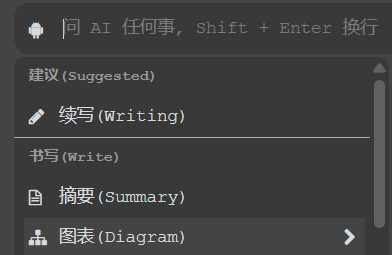
1. AI-assisted writing
Press the spacebar at the beginning of any blank line in the editing area to enable AI-assisted writing. Here you can use popular large language models:
📝 Continue writing on a theme
✨ Rewrite content and polish text
📊 Create charts (mind maps, pie charts, and more than ten other types)
📋 Write to-do lists, formulas, and code
✉️ Draft outlines, agendas, and emails
👩 Act as a translator, teacher, and code interpreter
🤖 Ask AI any questions
2. Real-time synchronized preview
We've divided the Cmd Markdown main interface into two parts: the left side is the editing area , and the right side is the preview area . Operations in the editing area are rendered in real time in the preview area, making it easy to see the final layout. And if you drag the scroll bar in one area, we have a clever algorithm that synchronizes the scroll bar in the other area to the equivalent position—super cool!
3. Editing toolbar
Perhaps you are still new to Markdown syntax. Before you are fully familiar with it, we have placed a toolbar at the top of the editing area as shown in the image below. You can use the mouse to adjust the format on the toolbar, but we still encourage you to use the keyboard to mark the format to improve the fluency of your writing.

4. Edit Mode
Edit text in a completely undistracted way: Click the stretch button on the far right of the editing toolbarCtrl + M or press it to switch Cmd Markdown to a standalone editing mode. This is an extremely clean writing environment where all potentially distracting elements have been removed, making it super uncluttered!
5. Real-time cloud-based document delivery
To ensure data security, Cmd Markdown saves every keystroke to the cloud, as indicated by a notification on the far right of the editing toolbar已保存 . No need to worry about browser crashes, power outages, earthquakes, or tsunamis—you can close your browser or computer at any time during editing and continue writing the next time you return to Cmd Markdown.
6. Offline Mode
Even with an unstable network connection, typing is perfectly safe! If your computer suddenly loses its internet connection while you're writing, Cmd Markdown will intelligently switch to offline mode, saving your subsequent typing locally until the network is restored, at which point it will be uploaded to the cloud. Even if you close your browser or computer before the network is restored, there's no problem. The next time you open Cmd Markdown, it will remind you to upload the saved text to the cloud. In short, we do our utmost to ensure the safety of your text.
7. Management Toolbar
To facilitate the management of your documents, a management toolbar as shown below has been placed at the top of the preview area :

You can use the management toolbar to:
Publish: Generate a permalink for the current document and publish and share it online.
New: Start writing a new manuscript
Delete: Delete the current document.
Export: Convert the current document into Markdown text or HTML/PDF format and export it to your local computer.
List: All new and past documents can be viewed and manipulated here.
Mode: Switch between normal/Vim/Emacs editing modes
AI: Switching between General Meaning Questions/Gemini/ChatGPT Large Language Model
8. Reading Toolbar

The reading toolbar in the upper right corner of the preview area allows you to view the table of contents of the current document and enhance the reading experience.
The five icons on the toolbar are as follows:
Table of Contents: Quickly navigate the current document's table of contents to jump to the paragraphs of interest.
View: Swap the positions of the left editing area and the right preview area.
Theme: Includes both black and white themes. Try the black theme , it's super cool!
Reading: A single-minded reading mode provides a superior reading experience.
Fullscreen: Simplicity, simplicity, and more simplicity—a completely immersive writing and reading environment.
9. Reading Mode
Click on the reading toolbarAlternatively, press [button Ctrl+Alt+M] to enter a separate reading mode interface. We have devoted a lot of time to every detail of the layout rendering: font, font size, line spacing, foreground and background colors, striving to improve the reading experience and quality.
10. Tags, Categories, and Search
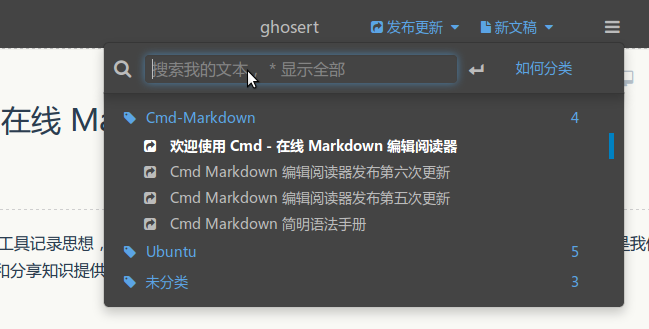
You can tag the current document by entering text in the following format at the beginning of any line in the editing area:
未分类
Documents tagged with a title will be categorized by title in the File List (Ctrl+Alt+F). Users can browse and view these documents using either the keyboard or mouse, or filter them by searching for titles or keywords in the File List's search box, as shown in the image below:
11. Manuscript Publication and Sharing
As you use Cmd Markdown to record, create, organize, and read documents, we hope it's not just a powerful tool, but also that your thoughts and knowledge, along with a superior reading experience, can be shared with like-minded individuals through this platform. This, in turn, encourages more people to come here to record and share their thoughts and knowledge. Try clicking...(Ctrl+Alt+P) Share this document with your friends!
Thank you again for taking the time to read this welcome message. Click here.(Ctrl+Alt+N) Start writing a new article! Enjoy recording, reading, and sharing here!
Author @ghosert,
April 3, 2025
